Wednesday, March 16, 2016

Mars in Scorpio March 2016

The red planet Mars is hiding in Scorpio this morning, just 10 arc minutes from the 2.6 magnitude star Acrab (β1 Sco). The red light gives it away. It was a windy morning but the clouds and the dark blue sky background made a cool effect.

The high ISO kinda ruins the color of Mars, so there is one at ISO 800 also, but then you can't see as many background stars.

mars march 2016
Single shot Canon T5i, ISO 3200, 300mm, f/5.6, 1.3 sec

mars march 2016
Single shot Canon T5i, ISO 800, 300mm, f/5.6, 1 sec

mars and acrab star
Single shot Canon T5i, ISO 3200, 300mm, f/5.6, 1.3 sec

Sunday, March 13, 2016

Canon T5i Control with Computer via USB Setup and Moon Photo

I've been slow to get around to this, after figuring out how to install EOS Utility without a CD on my laptop and realizing I could control my Canon T5i from my computer using a USB and actually shoot from my laptop. It's cloudy again tonight, but my 6 foot USB arrived in the mail so I wanted to test it out. My camera uses USB A to mini-B (not micro B like an Android phone, and not a regular B like a printer, but a mini-B).

laptop connected to camera with usb moon photo
6 foot cable lets my camera stand outside while I sit at the kitchen table

My original theory was that I would have finer control of manual focus using the EOS Utility software to make little tiny incremental changes. However, even the fine focus arrow seems to shift or stick and jump a little (could be my kit telephoto lens), but using my live focus technique I'm actually able to achieve similar results.

I think where this will really come in handy is with solar photography, because I'm unable to touch the manual focus while my DIY solar filter is over the lens. Being able to manually adjust the focus via my laptop would be a big help to focus in on those hard to see sun spots.

amazon basics usb a to mini b
Inexpensive Amazon Basics 6 foot long USB A to Mini B

It's hard to tell whether or not the single frame is better than what I get with autofocus on the moon. The moon is very hard to shoot with manual focus because the craters don't give the same feedback as a star. By that I mean when you focus on a star the goal is to get the dot as small as possible to know that you are in correct focus. With the moon, there's no absolute way to tell on a tiny LCD screen on the back of the camera - so shooting the moon might actually be better with the camera paired to the laptop to look for incremental improvements.
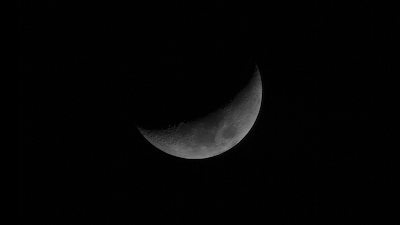
eos utility moon
Single frame desaturated but otherwise straight from the camera, 300mm, 1/160 sec, f/8, ISO 100
Not bad at all for a single frame, considering I was shooting between clouds too. Some better seeing and this might be a way to increase my moon quality without upping my lenses. Below is the final photo, stack of 3 frames with the usual post processing. I actually had to Google my high pass method to remind myself - has it really been that long??

eos utility moon
Stack of 3 frames, high pass layer in Photoshop

Sunday, January 31, 2016

Quick Winter Sky iPhone Photo

The iPhone can indeed do wide field night sky photos, like this one of the popular stretch of sky from Sirius to the Pleiades. The stars are slightly out of focus, which actually makes them look larger and easier to see - so it's not a bad effect. This photo was taken with NightCap Pro using long exposure mode. Doing a 1/2 second exposure helps reduce the background noise because I believe NightCap is averaging the pixels to clean it up a bit.

iphone 6 star photos

iphone 6 star photos
iPhone photo f/2.2, 1/2 sec, ISO 4000, 4mm

Thursday, January 28, 2016

Winter Hexagon Star Color Comparison

The Winter Hexagon or Winter Circle is an asterism (not an official constellation) that takes up a huge portion of the southern sky in winter with some of the brightest stars (including the brightest Sirius). You really can't miss it! As the hexagon moves across the sky through the season, it becomes the Spring Arch setting in the west at dusk.

Did you know the human eye can detect the temperature of stars? Amazing! We know that cool stars radiate and emit energy in the red and infrared regions of the electromagnetic spectrum and so they appear red or orange. Likewise, hot stars appear white or blue because they radiate their energy in the blue and ultra-violet wavelengths.

Using the same technique from a previous color comparison, I wanated to look at the entire Winter Hexagon. I also used the same exposure settings to keep everything constant, so the difference in brightness is also relative to the star's perceived brightness to us (Sirius is clearly the brightest). This makes it a little harder to determine color, because some of the stars are dimmer, but it's clear at least that there is a variety of color out there in this popular region of the sky.

I arranged them in this composite photo to show their position in the hexagon. It looks like a jewel box of beautiful colored orbs or marbles. This was fun and easy to put together. I feel like trying it again with different exposures to hold the brightness constant and then trying to organize them from coolest to hottest. Do you think you could? Which one looks the most blue?

winter hexagon star colors
Composite out of focus stars from the Winter Hexagon in their relative positions, all taken at 300mm, f/5.6, 1 sec, ISO 200
winter circle star colors
Winter Circle star colors with labels

It looks like last time I used ISO 800 and 1.3 sec exposures, which would have blown out Sirius for comparison but made Rigel brighter blue so it's easier to see. I bet if I looked at the histogram instead and just focused on getting that centered for each star I could get a good color comparison while holding brightness constant (or at least not washing anything out to pure white).

Sunday, January 24, 2016

How to Bulk Delete iPhone Photos: Hundreds or All Photos at Once

There is a new and better way to delete all the photos from your iPhone at once, or just choose hundreds or thousands at once without wiping them all out. You can do it all from within the iPhone, you no longer have to download a special app or hook it up to a computer. I was amazing it was so simple, I wanted to delete over 4000 photos at once without erasing my settings. I couldn't believe it was so easy to quickly do a bulk photo delete like this. Hopefully this simple tutorial walk through graphic shows you how to do it super quick:

  1. Open your Photos and click 'Select' in the top right.
  2. Rather than tapping each photo one at a time, slide right to select an entire row. This already saves a lot of time but we can do better...
  3. Slide right and then down at a right angle to select an array or rectangle of photos, you are drawing with your finger the rectangle you want to select. 
  4. Ok not bad but we can do better. Slide right and then down off the bottom of the screen, you can actually scroll to the bottom and select hundreds of photos at once to delete.

how to delete all iphone photos or lots at the same time
Simple steps to delete all or hundreds of iPhone photos at the same time without additional apps or hooking the phone up to a computer. Give it a try and comment below!

What do you think? Was this a simple way to delete lots of iPhone photos at the same time? Comment below if you like this tip!